This guide shows how to add a Recruit4Cash webcam affiliate banner to a website. You will need an affiliate account and permission to edit the page where the banner will appear.
About the screenshots: these show the real promotional tools interface rendered with an isolated test account. Affiliate ID 900001 is a test ID. Always generate code from your own signed-in account.
1. Open Promotional Tools and choose your offer
Open Promotional Tools after signing in. In the Three-Step Campaign Builder, select the audience and website that match your placement. Preview the destination and review the offer's terms before publishing.
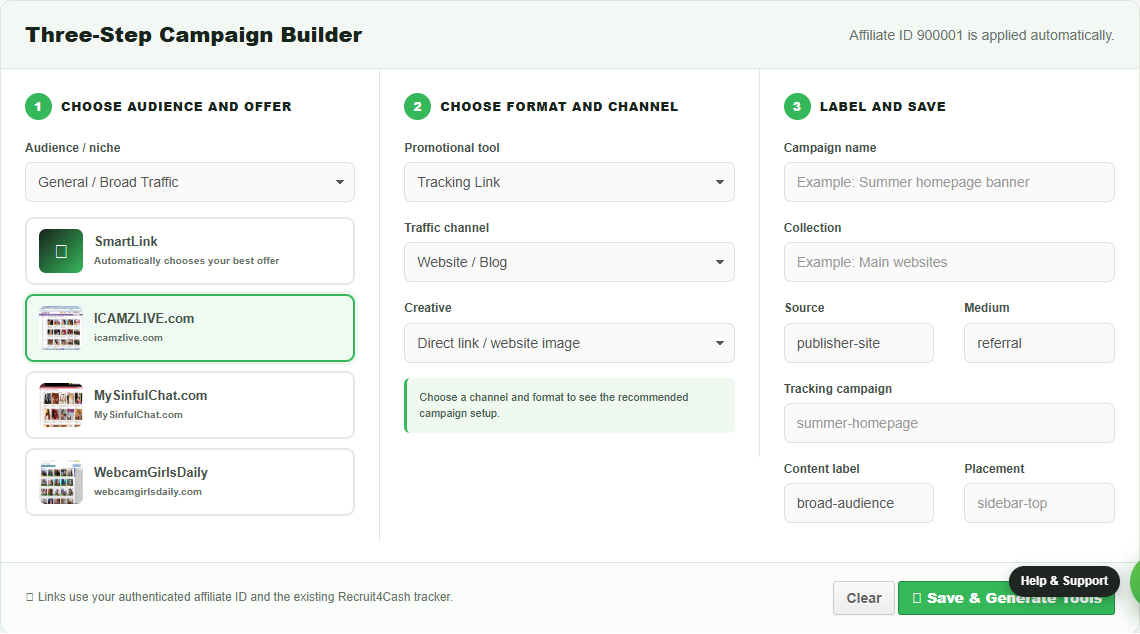
2. Select a banner and label the placement
Choose Responsive Smart Banner under Promotional tool and Website / Blog for the traffic channel. Choose an available creative if offered. Add a recognizable campaign name, such as Homepage sidebar, and a placement label such as sidebar-top. Use different labels for placements you want to compare.
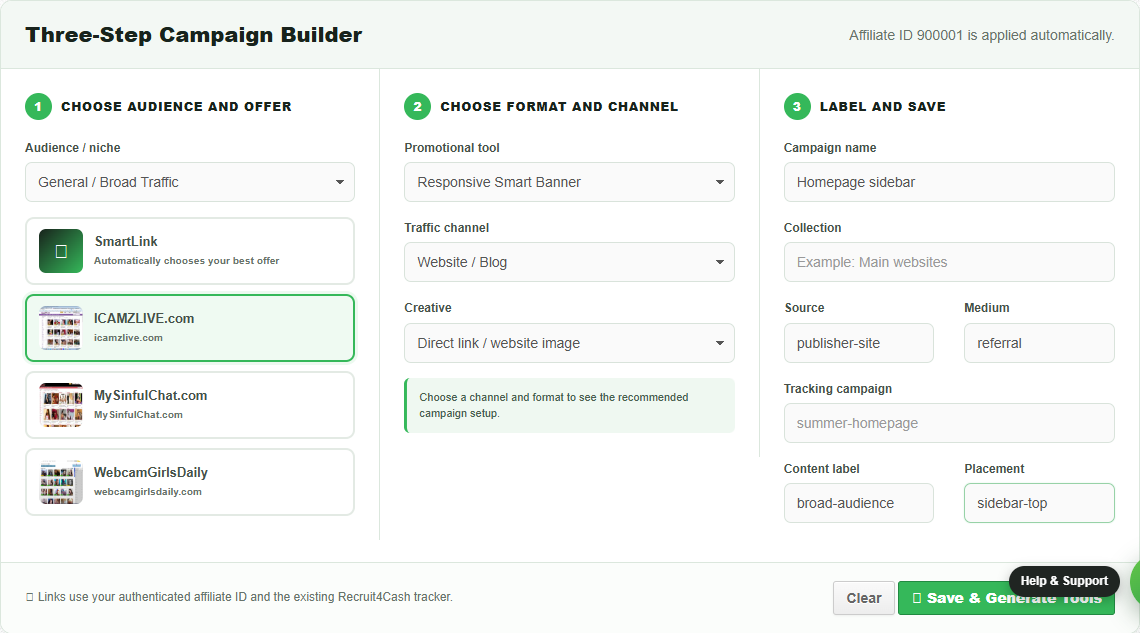
Click Save & Generate Tools. In Live Campaign Output, select Responsive Banner and use Copy Banner. For WordPress output, use its tab and Copy Widget control. Copy the full generated code, including any tracking elements.
3. Install your banner in WordPress or HTML
WordPress block editor
- Edit the page or post where the banner should appear.
- Add a Custom HTML block.
- Paste your full generated banner code into that block.
- Preview the page, then save or update it.
For a sidebar, use a Custom HTML block in the widget area supported by your theme. Page builders usually offer an HTML element. Use that element instead of a plain text block. Some WordPress roles or hosting security settings remove iframe or script tags; ask your site administrator if the saved code changes.
A website you edit directly
Paste the generated code into the HTML of the intended content area. Keep the destination URL, affiliate ID, image URL and tracking elements intact. Publish the page and check its layout at phone and desktop widths. Do not paste the code into a visual text field that displays HTML as text.
4. Test the published placement
- Open the public page in a fresh browser window and confirm the banner loads.
- Click once and check that it reaches the intended website. Your own test is not a customer conversion.
- Confirm the code came from your account; never copy the test ID from these screenshots.
- Check the campaign report using the correct dates and placement labels. Allow for reporting delays.
Fix common banner installation problems
The page shows code instead of a banner
Move it into a Custom HTML block or the page builder's HTML element. Check that the editor has not converted the angle brackets into displayed text.
The banner is blank or blocked
Check for missing code, an ad blocker, a consent tool or a site security policy blocking the image, iframe or script. Compare the saved code with a fresh copy from Promotional Tools.
The banner loads but the report has no impressions
Confirm that the full tracking code remains on the published page. A blocked or removed tracking pixel cannot measure impressions. Clicks and impressions are separate events.
The link opens the wrong page or gives an error
Generate fresh code from your account and test it again. Use account support to report the campaign name and the page where it is installed.
Next, read how revenue share commissions work or review the affiliate program.
Open Promotional Tools